Batch Photo WaterMark 1.01 - FAQ
How to run Batch Photo
WaterMark?
How to select images for adding text watermark?
How to view image information?
How to acquire images from digital camera or sanner?
How to add text watermark to images?
How to rotate images?
How to confirm text position?
How to set text font or backcolor?
How to set text align mode?
How to preview the result by full screen?
How to save images to folder?
What file formats it supports?
How to resize images?
How to purchase online?
How to register it?
 How to run Batch
Photo WaterMark? >>Top
How to run Batch
Photo WaterMark? >>Top
Once installed, Batch WaterMark is added to your Start menu and desktop. To run Batch WaterMark, double-click the desktop icon or launch the program from your Start menu.
How to select images for adding text watermark? >>Top
Expand Desktop/My Computer and select disk and folder contained your images.
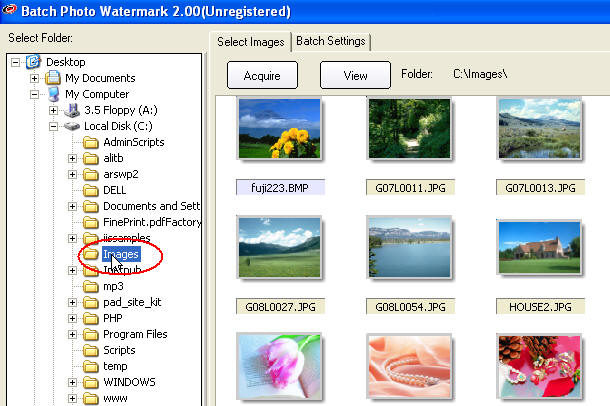
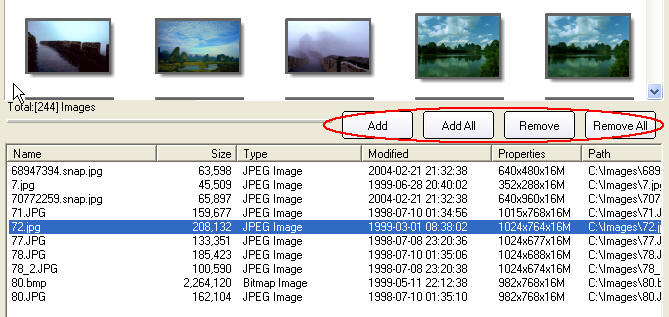
Select one image or more images,and click Add or Add All button to add images to the following file list.
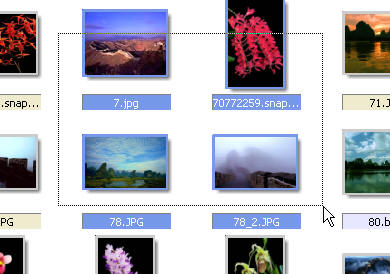
To select multiple objects, do one of the following:
1.Press and hold the Ctrl or Shift key, and select each image.
2.Click the blank area of the page and drag a marquee over the objects.
How to view image information? >>Top
Placing your cursor over an image pops up an ToolTips.
How to acquire images from digital camera or sanner? >>Top
Click Acquire button in Select Images pane.
Select the scanner or Digital Camera(If your camera came with a TWAIN driver) connected to your computer and select next button.
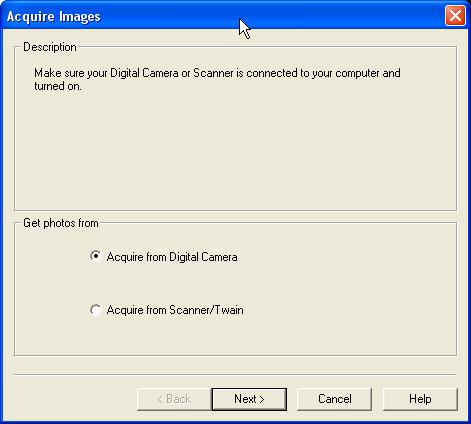
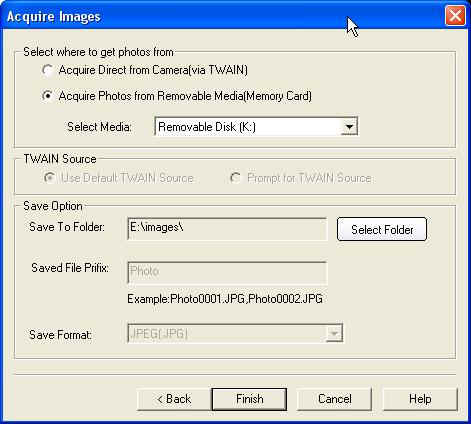
When the program runing,it can detect inserting removable device,and open acquire dialog.In select folder dialog,you could create a new folder to save acquired images.For TWAIN device,you can set save format and save file prifix.Saved format support JPEG,BMP,TIFF.
How to add text watermark to images? >>Top
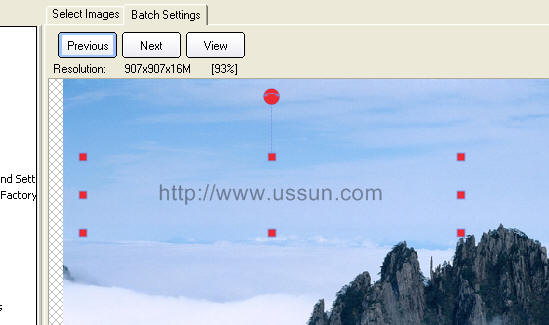
After added images to the filename list,default to select the last added image,then click Batch Setting tab.You would see "http://www.ussun.com" text box in up-left corner of the image.You can change the text content. It is effective for all the selected images.
How to rotate images? >>Top
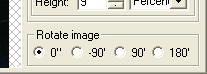
You can rotate different degree for each image.
How to confirm text position? >>Top
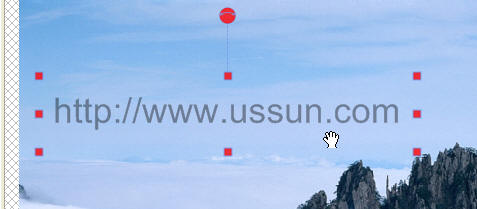
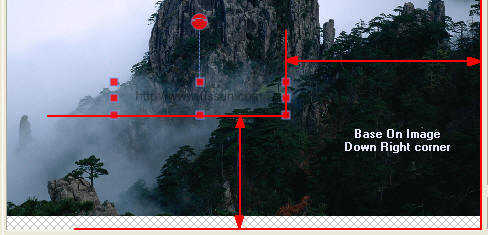
To move textbox,you should click textbox on the image first,and drag and drop the textbox to position you want.
About base on image:
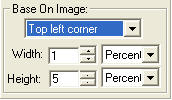
Top left corner:Distance is all the same from top-left corner of text box to top-left corner of the image for all images.
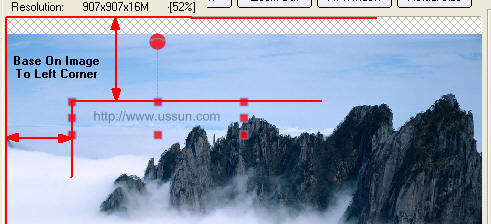
Top left corner:Distance is all the same from top-left corner of text box to top-right corner of the image for all images.
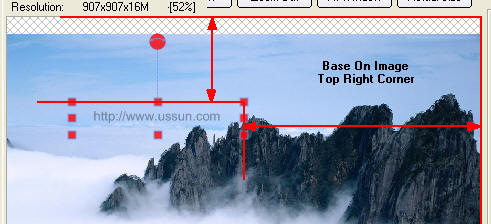
Top left corner:Distance is all the same from top-left of text box to down-left corner of the image for all images.
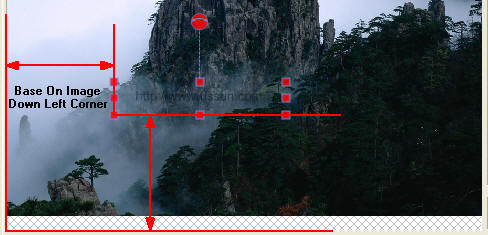
Top left corner:Distance is all the same from top-left of text box to down-right corner of the image for all images.
How to set text font or backcolor? >>Top
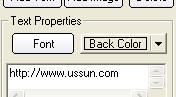
Click Font button or BackColor button in the Batch Setting tab,you can set text font or backcolor.
It is effective for all the selected images.
How to set text align mode? >>Top
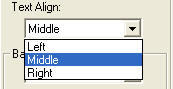
Text align has three modes,contains Align left,Align middle,Align right.
How to preview the result by full screen? >>Top
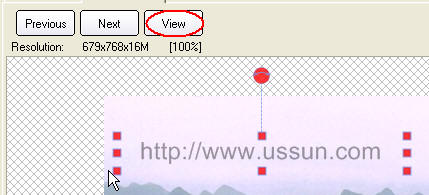
After setting text,you can view result on full screen by clicking view button in Batch Setting tab pane.
How to save images to folder? >>Top
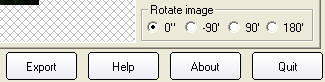
To save images to folder,you can click Export button,and open Export dialog.
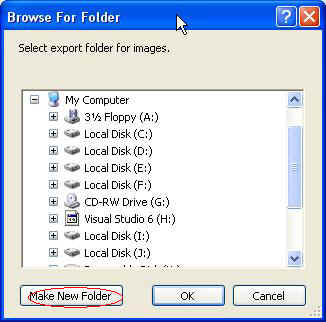
You should specify exported folder to save images and can create new folder in Select Folder dialog,or you can remain orignal folder.

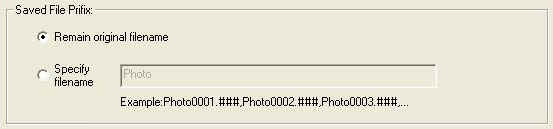
You could specify saved file name or remain orignal file name.
What file formats it supports? >>Top
It supports popular image formats (GIF, BMP, JPG,TGA,TIFF,PCX, PNG,MNG,WMF, EMF, ICO) for viewing image.
It supports popular image formats (GIF, BMP, JPG,TGA,TIFF,PCX, PNG) for saving image.
How to resize images? >>Top
If you want resize images when saving images,you should click Resize checkbox in Export dialog.
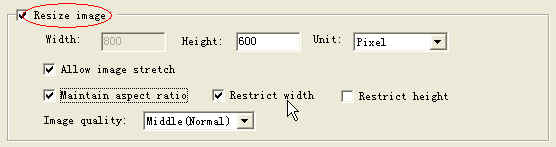
if you click allow image stretch checkbox,saved images could be enlarged.
if you click Maintain aspect ratio checkbox,image could be enlarged or reduced by aspect ratio.
With Restrict width option,images width could be ignored when resized.
With Restrict height option,images height could be ignored when resized.
In Unit list,you can select by Pixel or by Percent to resize images.
Image quality has three mode:Low,Middle and High.
How to purchase online? >>Top
You can goto http://www.ussun.com/purchase.htm .
How to register it? >>Top
After purchase,you will receive an email containing Registeration Code .
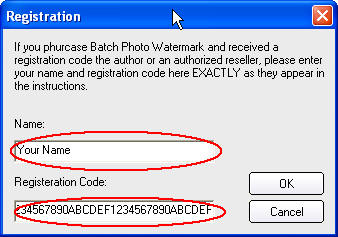
For example:
If you received Registeration Code as following:
ABC 1234567890ABCDEF
You should type ABC in Name field and type 1234567890ABCDEF in Registeration Code field.